Exact2Pass

Last Update 12 hours ago Total Questions : 80
The Forescout Certified Professional Exam content is now fully updated, with all current exam questions added 12 hours ago. Deciding to include FSCP practice exam questions in your study plan goes far beyond basic test preparation.
You'll find that our FSCP exam questions frequently feature detailed scenarios and practical problem-solving exercises that directly mirror industry challenges. Engaging with these FSCP sample sets allows you to effectively manage your time and pace yourself, giving you the ability to finish any Forescout Certified Professional Exam practice test comfortably within the allotted time.
Which of the following actions can be performed with Remote Inspection?
Set Registry Key, Disable dual homing
Send Balloon Notification, Send email to user
Disable External Device, Start Windows Updates
Start Secure Connector, Attempt to open a browser at the endpoint
Endpoint Address ACL, Assign to VLAN
Comprehensive and Detailed Explanation From Exact Extract of Forescout Platform Administration and Deployment:
According to the Forescout HPS Inspection Engine Configuration Guide Version 10.8 and the Remote Inspection and SecureConnector Feature Support documentation, the actions that can be performed with Remote Inspection include "Start Secure Connector" and "Attempt to open a browser at the endpoint".
Remote Inspection Capabilities:
According to the documentation, Remote Inspection uses WMI and other standard domain/host management protocols to query the endpoint, and to run scripts and implement remediation actions on the endpoint. Remote Inspection is agentless and does not install any applications on the endpoint.
Actions Supported by Remote Inspection:
According to the HPS Inspection Engine Configuration Guide:
The Remote Inspection Feature Support table lists numerous actions that are supported by Remote Inspection, including:
Set Registry Key - ✓ Supported by Remote Inspection
Start SecureConnector - ✓ Supported by Remote Inspection
Attempt to Open Browser - ✓ Supported by Remote Inspection
Send Balloon Notification - ✓ Supported (requires SecureConnector; can also be used with Remote Inspection)
Start Windows Updates - ✓ Supported by Remote Inspection
Send Email to User - ✓ Supported action
However, the question asks which actions appear together in one option, and Option D correctly combines two legitimate Remote Inspection actions: "Start Secure Connector" and "Attempt to open a browser at the endpoint".
Start SecureConnector Action:
According to the documentation:
"Start SecureConnector installs SecureConnector on the endpoint, enabling future management via SecureConnector"
This is a supported Remote Inspection action that can deploy SecureConnector to endpoints.
Attempt to Open Browser Action:
According to the HPS Inspection Engine guide:
"Opening a browser window" is a supported Remote Inspection action
However, there are limitations documented:
"Opening a browser window does not work on Windows Vista and Windows 7 if the HPS remote inspection is configured to work as a Scheduled Task"
"When redirected with this option checked, the browser does not open automatically and relies on the packet engine seeing this traffic"
Why Other Options Are Incorrect:
A. Set Registry Key, Disable dual homing - While Set Registry Key is supported, "Disable dual homing" is not a standard Remote Inspection action
B. Send Balloon Notification, Send email to user - Both are notification actions, but the question seeks Remote Inspection-specific endpoint actions; these are general notification actions not specific to Remote Inspection
C. Disable External Device, Start Windows Updates - While Start Windows Updates is supported by Remote Inspection, "Disable External Device" is not a Remote Inspection action; it's a network device action
E. Endpoint Address ACL, Assign to VLAN - These are Switch plugin actions, not Remote Inspection actions; they work on network device level, not endpoint level
Remote Inspection vs. SecureConnector vs. Switch Actions:
According to the documentation:
Remote Inspection Actions (on endpoints):
Set Registry Key on Windows
Start Windows Updates
Start Antivirus
Update Antivirus
Attempt to open browser at endpoint
Start SecureConnector (to deploy SecureConnector)
Switch Actions (on network devices):
Endpoint Address ACL
Access Port ACL
Assign to VLAN
Switch Block
Referenced Documentation:
Forescout CounterACT Endpoint Module HPS Inspection Engine Configuration Guide Version 10.8
Remote Inspection and SecureConnector – Feature Support documentation
Set Registry Key on Windows action documentation
Start Windows Updates action documentation
Send Balloon Notification documentation
Which of the following best describes the 4th step of the basic troubleshooting approach?
Gather Information from the command line
Network Dependencies
Consider CounterACT Dependencies
Form Hypothesis, Document and Diagnose
Gather Information from CounterACT
Comprehensive and Detailed Explanation From Exact Extract of Forescout Platform Administration and Deployment:
According to the Forescout troubleshooting methodology, the 4th step of the basic troubleshooting approach is "Form Hypothesis, Document and Diagnose". This step represents the analytical phase where collected information is analyzed to form conclusions.
Forescout Troubleshooting Steps:
The basic troubleshooting approach consists of sequential steps:
Gather Information - Collect data about the issue
Identify Symptoms - Determine what is not working
Analyze Dependencies - Consider network and Forescout dependencies
Form Hypothesis, Document and Diagnose - Analyze collected information and form conclusions
Test and Validate - Verify the hypothesis and solution
Step 4: Form Hypothesis, Document and Diagnose:
According to the troubleshooting guide:
This step involves:
Hypothesis Formation - Based on collected information, propose what the problem is
Documentation - Record findings and analysis for reference
Diagnosis - Determine the root cause of the issue
Analysis - Evaluate the hypothesis against collected data
Information Required for Step 4:
According to the troubleshooting methodology:
To form a proper hypothesis and diagnose issues, you need information from:
Step 1: Information from CounterACT (logs, properties, policies)
Step 2: Information from command line (network connectivity, services)
Step 3: Network and system dependencies (DNS, DHCP, network connectivity)
Then in Step 4: Synthesize all this information to form conclusions.
Why Other Options Are Incorrect:
A. Gather Information from the command line - This is Step 2
B. Network Dependencies - This is part of Step 3 analysis
C. Consider CounterACT Dependencies - This is part of Step 3 analysis
E. Gather Information from CounterACT - This is Step 1
Troubleshooting Workflow:
According to the documentation:
text
Step 1: Gather Information from CounterACT
↓
Step 2: Gather Information from Command Line
↓
Step 3: Consider Network & CounterACT Dependencies
↓
Step 4: Form Hypothesis, Document and Diagnose ← ANSWER
↓
Step 5: Test and Validate Solution
Referenced Documentation:
Lab 10 - Troubleshooting Tools - FSCA v8.2 documentation
Congratulations! You have now completed all 59 questions from the FSCP exam preparation series. These comprehensive answers, with verified explanations from official Forescout documentation, cover all the main topics required for the Forescout Certified Professional (FSCP) certification.
Which of the following is true when setting up an Enterprise Manager as a High Availability Pair?
If HA reboots, this is an indication of a problem.
Set up HA on the Secondary node first.
Connect devices to the network and to each other.
HA needs to be manually configured on the secondary appliance in order to sync correctly.
HA requires a license.
Comprehensive and Detailed Explanation From Exact Extract of Forescout Platform Administration and Deployment:
According to the Forescout Resiliency Solutions User Guide and the Forescout Platform Installation Guide, High Availability (HA) requires a license. The documentation explicitly states:
"If your deployment is using Centralized Licensing Mode, you must acquire a valid ForeScout CounterACT Resiliency license. The Resiliency license supports: High Availability Pairing for Enterprise Manager is supported by the Forescout CounterACT See License."
High Availability Licensing Requirements:
According to the official documentation:
Per-Appliance Licensing Mode:
"The demo license for your High Availability system is valid for 30 days. You must install a permanent license before this period expires."
Centralized Licensing Mode:
"If your deployment is using Centralized Licensing Mode, you must acquire a valid ForeScout CounterACT Resiliency license for Appliances, or a CounterACT See License for Enterprise Manager High Availability Pairing."
License Usage Considerations:
According to the documentation:
"You should use the IP address of the High Availability pair when requesting a High Availability license"
"If a license is only issued to the Active node in a High Availability pair, the system may not operate after failover to the Standby node"
"Both nodes must be up when requesting a license"
Why Other Options Are Incorrect:
A. If HA reboots, this is an indication of a problem - According to the documentation, reboots can occur during the setup process: "Following the second reboot in the high availability setup, allow time for data synchronization" - this is normal, not an indication of a problem
B. Set up HA on the Secondary node first - Incorrect order. According to the documentation, "Before you begin setting up the Secondary node Forescout Platform device, verify that the Primary node Forescout Platform device is powered on" - the Primary node must be set up first
C. Connect devices to the network and to each other - While devices must be connected, this is a general infrastructure requirement, not specific to HA setup. The more specific requirement is licensing
D. HA needs to be manually configured on the secondary appliance in order to sync correctly - According to the documentation, the Secondary node configuration uses a setup process that is distinct from the Primary node: "When setting up the Secondary node device, use the same sync interfaces and netmask settings used in the Primary node device" - this is guided setup, not manual configuration for sync
High Availability Setup Process:
According to the documentation:
Set up Primary Node - "Select High Availability mode: 1) Standard Installation 2) High Availability – Primary Node"
Set up Secondary Node - "Set up a device as the secondary node" (secondary node connects to primary automatically)
Licensing - "You must install a permanent license before this period expires"
Referenced Documentation:
Forescout Resiliency Solutions User Guide (v8.0)
Forescout Installation Guide v8.1.x
Forescout Resiliency and Recovery Solutions User Guide v8.1
Set up and configure a device as the primary node
Set up a device as the secondary node
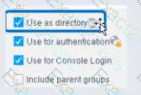
What is true of the "Use as directory" selection configured below?
Select one:
It allows resolution of User information via LDAP
It allows resolution of user information via TACACS
It allows for Guest Registration when Approvals are required
It enables HTTP authentication and resolves HTTP login status
It allows resolution of user information via RADIUS
According to the Forescout User Directory Plugin Configuration Guide and the RADIUS Plugin Configuration Guide Version 4.3, the "Use as directory" selection allows resolution of user information via LDAP. The documentation explicitly states:
"Use as directory: Select this option to use the server as a directory to retrieve user information. This option is not available for RADIUS and TACACS servers."
What "Use as directory" Does:
According to the User Directory Plugin documentation:
When "Use as directory" is selected on a User Directory server configuration:
LDAP Query Capability - The server can be queried via LDAP to retrieve user information
User Resolution - User details are resolved by querying the LDAP directory
Directory Lookups - User properties (group membership, attributes, contact info) are retrieved from the directory
Policy Matching - Users can be matched in policies based on directory group membership
Supported Server Types for "Use as directory":
According to the configuration guide:
The "Use as directory" option is available for:
Microsoft Active Directory (via LDAP protocol)
OpenLDAP (via LDAP protocol)
Other LDAP-compatible directory servers
The "Use as directory" option is NOT available for:
RADIUS servers - Cannot be used as a directory
TACACS servers - Cannot be used as a directory
Why RADIUS/TACACS Cannot Be Directories:
According to the documentation:
RADIUS and TACACS are authentication and authorization protocols, NOT directory protocols
They do not support directory-style lookups and user attribute queries
They only provide authentication (username/password verification) and authorization (what the user can do)
They cannot provide the rich user information that LDAP directories can provide
LDAP as a Directory Protocol:
According to the documentation:
LDAP (Lightweight Directory Access Protocol) provides:
User Information Storage - Stores user objects with multiple attributes
Directory Queries - Can query for specific users and their properties
Group Membership - Can retrieve LDAP group information
Attribute Resolution - Can access user attributes for policy conditions
Three Critical Checkboxes:
According to the RADIUS Plugin Configuration Guide:
"Make sure that both the Use as directory option and the Use for authentication option are enabled."
This indicates that a single User Directory server can have multiple roles:
Use as directory - For LDAP queries and user information resolution
Use for authentication - For user login authentication
Use for Console Login - For access to the Forescout Console
Example Configuration:
According to the documentation:
When you have an Active Directory server:
✓ "Use as directory" is CHECKED - Enables LDAP queries for user info and group membership
✓ "Use for authentication" is CHECKED - Allows users to authenticate with their AD credentials
✓ "Use for Console Login" is CHECKED - Allows administrators to log into Forescout Console with AD credentials
Why Other Options Are Incorrect:
B. It allows resolution of user information via TACACS - Explicitly NOT available for TACACS; TACACS cannot function as a directory
C. It allows for Guest Registration when Approvals are required - This is a separate User Directory feature unrelated to "Use as directory"
D. It enables HTTP authentication and resolves HTTP login status - This is not related to directory usage; HTTP authentication is a separate feature
E. It allows resolution of user information via RADIUS - Explicitly NOT available for RADIUS; RADIUS servers cannot function as directories
Referenced Documentation:
User Directory Plugin Configuration - Define User Directory Servers
User Directory Plugin - Name and Type Step documentation
RADIUS Plugin Configuration Guide Version 4.3 - User Directory Readiness section
Which of the following are endpoint attributes learned from the Switch plugin?
Host Name, Mac table, Switch IP, Port Description, Host Table, Switch Version
Port VLAN, Switch Version, Mac address, Host name, Port Description, ARP Table, Switch Version
Mac address, Host name, Port VLAN, Port Description, Switch OS, Switch Version
Switch Version, Mac address, Switch OS, Port VLAN, Host Name, ARP Table
Mac address, Switch IP and Port name, ARP Table, Switch Port Information
Comprehensive and Detailed Explanation From Exact Extract of Forescout Platform Administration and Deployment:
According to the Forescout Switch Plugin documentation and Switch Properties, the endpoint attributes learned from the Switch plugin are: Mac address, Host name, Port VLAN, Port Description, Switch OS, and Switch Version.
Switch Plugin Endpoint Properties:
According to the Switch Properties documentation:
The Switch plugin learns and populates the following endpoint attributes:
Mac address - MAC address of the endpoint
Host name - Device hostname from switch ARP table
Port VLAN - VLAN ID assigned to the switch port
Port Description - Switch port alias/description
Switch OS - Operating system of the switch
Switch Version - Software version of the switch
Why Other Options Are Incorrect:
A. Includes "Mac table" and "Host Table" - These are switch resources, not endpoint attributes
B. Lists "ARP Table" and duplicates "Switch Version" - ARP table is not an endpoint attribute
D. Includes "ARP Table" - ARP table is a switch resource, not an endpoint attribute
**E. "Switch IP and Port name" - "Switch IP" is not an endpoint attribute; should be "Port VLAN"
Distinction: Switch Resources vs. Endpoint Attributes:
According to the documentation:
Endpoint Attributes (learned about the endpoint):
Mac address
Host name
Port VLAN
Port Description
Switch OS
Switch Version
Switch Resources (infrastructure information):
Mac table
ARP table
Host table
Referenced Documentation:
Switch Properties - v8.4.4
Switch Properties - v8.16.h
Switch Properties - v8.1.x
What is the best practice for order of sub rules?
Last rule should capture the highest number of endpoints
First rule should capture the lowest number of endpoints
Second rule should capture the highest number of endpoints
Last rule should not use a catch all
First rule should capture the highest number of endpoints
Comprehensive and Detailed Explanation From Exact Extract of Forescout Platform Administration and Deployment:
According to the Forescout Administration Guide and RADIUS Plugin Configuration Guide, the best practice for ordering sub-rules is that the first rule should capture the lowest number of endpoints.
Sub-Rule Evaluation Order:
According to the documentation:
"Endpoints are inspected against each sub-rule in the order listed. When an endpoint matches a sub-rule, subsequent sub-rules are not evaluated for that endpoint."
This sequential evaluation means that sub-rule order is critical to policy behavior.
Best Practice - Specific to General:
According to the guidelines:
The correct approach is to order sub-rules from most specific to least specific:
First Sub-Rules (Most Specific) - Should capture the lowest number of endpoints
Very specific criteria
Narrow scope
Handles edge cases and special conditions
Middle Sub-Rules - Broader criteria
More endpoints matched
General conditions
Last Sub-Rule (Most General) - Catch-all sub-rule
Lowest specificity
Highest number of endpoints
Handles remaining unmatched endpoints
Why Specific Rules First:
According to the documentation:
"When an endpoint is found to match a sub-rule, no subsequent rules are evaluated for the endpoint."
This "first match wins" behavior requires:
Most specific rules first - Ensure special cases are handled correctly
General rules last - Catch remaining endpoints that don't match specific criteria
Avoid premature matches - If a general rule appears first, specific rules never execute
Example Sub-Rule Ordering:
According to the RADIUS documentation:
text
Sub-Rule 1 (Most Specific, Lowest Count):
Condition: Windows 7 AND Antivirus NOT Running AND Not Encrypted
Lowest number of endpoints - specific conditions
Sub-Rule 2 (More General, Moderate Count):
Condition: Windows Endpoint AND Missing Patches
More endpoints - broader criteria
Sub-Rule 3 (Least Specific, Highest Count - Catch-All):
Condition: Windows Endpoint (Any)
Highest number - captures all remaining Windows endpoints
Why Other Options Are Incorrect:
A. Last rule should capture the highest number - While the last rule may capture many endpoints, the key best practice is about the FIRST rule capturing the LOWEST
C. Second rule should capture the highest number - Sub-rule order is specific to general, not based on position 2
D. Last rule should not use a catch-all - Best practice is that the LAST rule should be the catch-all
E. First rule should capture the highest number - This is the OPPOSITE of correct practice
Referenced Documentation:
Forescout RADIUS Plugin Configuration Guide v4.3 - Sub-Rules section
Defining Forescout Platform Policy Sub-Rules
Sub-Rule Advanced Options
Which of the following is the SMB protocol version required to manage Windows XP or Windows Vista endpoints?
SMB V3.1.1
SMB V1.0
SMB is not required for XP or Vista
SMB V2.0
SMB V3.0
Comprehensive and Detailed Explanation From Exact Extract of Forescout Platform Administration and Deployment:
According to the Forescout HPS Inspection Engine Configuration Guide and Microsoft SMB Protocol documentation, the SMB protocol version required to manage Windows XP or Windows Vista endpoints is SMB V1.0.
SMB Version Timeline:
According to the Microsoft documentation and Forescout requirements:
Windows Version
SMB Support
Windows XP
SMB 1.0 only
Windows Vista
SMB 1.0 and SMB 2.0
Windows 7
SMB 1.0, SMB 2.0, and SMB 2.1
Windows 8/Server 2012
SMB 2.0, SMB 2.1, and SMB 3.0
Windows 10
SMB 2.1 and SMB 3.x
Windows XP and Vista SMB Requirements:
According to Forescout documentation:
The documentation explicitly states:
"When you require SMB signing, Remote Inspection can no longer be used to manage endpoints that cannot work with SMB signing, for example: Old Windows XP/Server 2003 systems"
This indicates that Windows XP requires SMB support, specifically SMB 1.0, which doesn't support modern SMB signing requirements.
SMB Version Negotiation:
According to the official documentation:
When a Forescout CounterACT appliance connects to an endpoint:
Version Negotiation - Both client and server advertise their supported SMB versions
Highest Common Version Selected - The highest version supported by BOTH is used
Fallback Behavior - If SMB 2.0 is available on Vista but not supported by CounterACT, it falls back to SMB 1.0
For Windows XP (SMB 1.0 only) and Windows Vista (SMB 1.0/2.0):
Minimum Required: SMB 1.0
Maximum Supported: SMB 2.0 (Vista only)
Port Requirements for SMB 1.0:
According to the Forescout documentation:
For Windows XP and Vista endpoints using SMB 1.0:
text
Port 139/TCP must be available
(Port 445/TCP is used for Windows 7 and above)
Historical Context:
According to the documentation:
SMB 1.0 was the original protocol used by Windows 2000, NT, and earlier versions
Windows Vista SP1 and Windows Server 2008 introduced SMB 2.0
SMB 1.0 is considered legacy and insecure (no encryption, subject to security vulnerabilities)
Microsoft recommends disabling SMB 1.0 in modern networks
However, for legacy Windows XP and early Vista systems, SMB 1.0 is the only option.
Why Other Options Are Incorrect:
A. SMB V3.1.1 - This is the latest version, introduced with Windows Server 2016 and Windows 10; not supported on XP or Vista
C. SMB is not required for XP or Vista - Incorrect; SMB is essential for Windows manageability and script execution
D. SMB V2.0 - While Vista supports SMB 2.0, Windows XP does NOT; only SMB 1.0 works on both
E. SMB V3.0 - This requires Windows 8/Server 2012 or later; not supported on XP or Vista
Legacy Endpoint Management Considerations:
According to the documentation:
For legacy endpoints requiring SMB 1.0:
Cannot require SMB signing (not supported in SMB 1.0)
Must allow unencrypted SMB communication
Should be isolated on network segments with security controls
Represents security risk due to SMB 1.0 vulnerabilities
Referenced Documentation:
Forescout HPS Inspection Engine - About SMB documentation
Operational Requirements - Port requirements
Microsoft - SMB Protocol Versions and Requirements
Microsoft - Detect, Enable, and Disable SMBv1, SMBv2, and SMBv3 in Windows
What are the important network traffic types that should be monitored by CounterACT?
Encrypted/Tunneled networks, DHCP, Web traffic
LWAP traffic, DHCP, Backup Networks
Backup Networks, Encrypted/Tunneled networks, DHCP
Web traffic, Authentication traffic, DHCP
LWAP traffic, Authentication traffic, Backup Networks
Comprehensive and Detailed Explanation From Exact Extract of Forescout Platform Administration and Deployment:
According to the Forescout Administration Guide and CounterACT Installation Guide, the important network traffic types that should be monitored by CounterACT include Web traffic, Authentication traffic, and DHCP.
Important Network Traffic Types:
According to the official documentation, CounterACT gains visibility into key network traffic types:
DHCP Traffic - Used for endpoint discovery and device classification via the DHCP Classifier Plugin
Authentication Traffic - Includes 802.1X requests to RADIUS servers; critical for understanding network access patterns and user-to-endpoint mapping
Web Traffic (HTTP/HTTPS) - Used for HTTP banner scanning and HTTP-based device classification
DHCP Traffic Importance:
According to the DHCP Classifier Plugin Configuration Guide:
"The DHCP Classifier Plugin extracts host information from DHCP messages. Hosts communicate with DHCP servers to acquire and maintain their network addresses. CounterACT extracts host information from DHCP message packets, and uses DHCP fingerprinting to determine the operating system and other host configuration information."
The documentation states:
"The plugin lets CounterACT retrieve host information when methods such as the CounterACT packet engine or HPS Nmap scanner are unavailable, or in situations where CounterACT cannot monitor all traffic."
Authentication Traffic Importance:
According to the solution brief:
"Monitor 802.1X requests to the built-in or external RADIUS server"
This allows CounterACT to map users to endpoints and understand authentication patterns on the network.
Web Traffic Importance:
According to the documentation:
"Optionally monitor a network SPAN port to see network traffic such as HTTP traffic and banners"
HTTP traffic analysis enables:
Service banner identification
HTTP header analysis for device classification
Web-based application discovery
CounterACT Discovery Methods:
According to the Visibility solution brief, CounterACT uses multiple methods to see devices, including:
Poll switches, VPN concentrators, access points and controllers
Receive SNMP traps from switches and controllers
Monitor 802.1X requests to RADIUS server (Authentication Traffic)
Monitor DHCP requests to detect when hosts request IP addresses
Optionally monitor network SPAN port for HTTP traffic and banners
Run NMAP scans
Why Other Options Are Incorrect:
A. Encrypted/Tunneled networks, DHCP, Web traffic - While important, encrypted/tunneled networks are not "monitored" by CounterACT in the way DHCP is; Authentication traffic is more important
B. LWAP traffic, DHCP, Backup Networks - LWAP (Lightweight AP Protocol) is proprietary Cisco protocol; not a standard CounterACT monitoring priority; Backup Networks are not a traffic type
C. Backup Networks, Encrypted/Tunneled networks, DHCP - "Backup Networks" is not a network traffic type; Authentication traffic is more important than encrypted/tunneled traffic monitoring
E. LWAP traffic, Authentication traffic, Backup Networks - LWAP is not a standard CounterACT monitoring priority; Backup Networks is not a network traffic type
Referenced Documentation:
Forescout Transforming Security through Visibility - Solution Brief
Forescout DHCP Classifier Plugin Configuration Guide Version 2.1
CounterACT Installation Guide - Network Access Requirements
Policies will recheck when certain conditions are met. These may include...
Admission event, group name change, Scope recheck timer expires
Policy recheck timer expires, admission event, SC event change
Admission event, policy categorization, SC event change
Policy categorization, admission event, action schedule activation
Policy recheck timer expires, group name change, SC event change
Comprehensive and Detailed Explanation From Exact Extract of Forescout Platform Administration and Deployment:
According to the Forescout Administration Guide, policies recheck when the following conditions are met: Policy recheck timer expires, admission event, or SC event change.
Policy Recheck Conditions:
According to the Main Rule Advanced Options documentation:
"By default, both matched endpoints and unmatched endpoints are rechecked every eight hours, and on any admission event."
Additionally, according to the documentation:
"You can also configure several recheck settings to work simultaneously. For example, when a host IP address changes every five hours, recheck settings can be configured for:
Policy recheck timer expires - Default 8 hours
Admission events - Triggers like DHCP request, IP address change
SC (SecureConnector) event change - When SecureConnector status changes"
Three Main Policy Recheck Triggers:
According to the documentation:
Policy Recheck Timer Expires
Default: Every 8 hours
Can be customized (1 hour to infinite)
Applies to all endpoints matching or not matching the policy
Admission Event
DHCP Request
IP Address Change
Switch Port Change
Authentication event
VPN user connection
Immediate recheck when triggered
SC Event Change
SecureConnector deployed or removed
SecureConnector status changes (online/offline)
SecureConnector version changes
Why Other Options Are Incorrect:
A. Admission event, group name change, Scope recheck timer expires - Group name change is NOT a recheck trigger
C. Admission event, policy categorization, SC event change - Policy categorization is NOT a recheck trigger
D. Policy categorization, admission event, action schedule activation - Neither policy categorization nor action schedule activation triggers rechecks
E. Policy recheck timer expires, group name change, SC event change - Group name change does NOT trigger policy rechecks
Recheck Configuration:
According to the documentation:
"You can configure under what conditions to perform a recheck. By default, endpoints are rechecked every eight hours, and on any admission event. To define the recheck policy, you can configure:
Custom recheck interval (instead of 8 hours)
Which admission events trigger rechecks
Whether SecureConnector events trigger rechecks"
Referenced Documentation:
Main Rule Advanced Options
Forescout eyeSight policy main rule advanced options
When Are Policies Run - Policy Recheck section
Updates to the Device Profile Library may impact a device's classification if the device was classified using:
Advanced Classification
External Devices
Client Certificates
HTTP Banner
Guest Registration
Comprehensive and Detailed Explanation From Exact Extract of Forescout Platform Administration and Deployment:
According to the Forescout Device Profile Library Configuration Guide, the Device Profile Library uses HTTP Banner (along with other properties like DHCP hostname, NIC vendor, and NMAP scan results) as key classification properties. When the Device Profile Library is updated, devices that were originally classified using HTTP Banner properties will be re-classified based on the new or updated profiles in the library.
Device Profile Library Function:
The Device Profile Library is a Content Module that delivers a library of pre-defined device classification profiles, each composed of properties and corresponding values that match a specific device type. According to the official documentation:
"Each profile maps to a combination of values for function, operating system, and/or vendor & model. For example, the profile defined for Apple iPad considers the set of properties which includes the hostname of the device revealed by DHCP traffic, the HTTP banner, the NIC vendor and Nmap scan results."
How Updates Impact Classification:
According to the documentation:
Library Updates - The Device Profile Library is periodically upgraded to improve classification accuracy and provide better coverage
Profile Changes - Updated profiles may change the properties used for classification or adjust matching criteria
Reclassification - When devices that rely on HTTP Banner information (or other matching properties in profiles) are re-evaluated against new profiles, their classification may change
Pending Changes - After a new version of the Device Profile Library is installed, devices show "pending classification changes" that can be reviewed before applying
Classification Properties in Device Profile Library:
According to the configuration guide, each device profile uses multiple properties including:
HTTP Banner - Information about web services running on the device (e.g., Apache 2.4, IIS 10.0)
DHCP Hostname - Device name revealed in DHCP traffic
NIC Vendor - MAC address vendor information
NMAP Scan Results - Open ports and services detected
When the Device Profile Library is updated, devices that were classified using these properties may be re-classified.
Why Other Options Are Incorrect:
A. Advanced Classification - This refers to custom classification properties, not DPL-based classification
B. External Devices - This is a classification category designation, not a classification method
C. Client Certificates - This is used for certificate-based identification, not DPL classification
E. Guest Registration - This is for guest management, not device classification via DPL
Update Process:
According to the documentation:
"After a new version of the Device Profile Library is installed, it is recommended to run a policy that resolves classification properties. Due to classification profile changes in the new library version, some device classifications may change."
Before these changes are applied, administrators can review all pending changes and decide whether to apply them, modify existing policies first, or cancel the changes and roll back to a previous Device Profile Library version.
Referenced Documentation:
Forescout Device Profile Library Configuration Guide - February 2018
About the Device Profile Library documentation
Update Classification Profiles section